MeshLine
Mesh replacement for THREE.Line
Instead of using GL_LINE, it uses a strip of triangles billboarded.

Demos
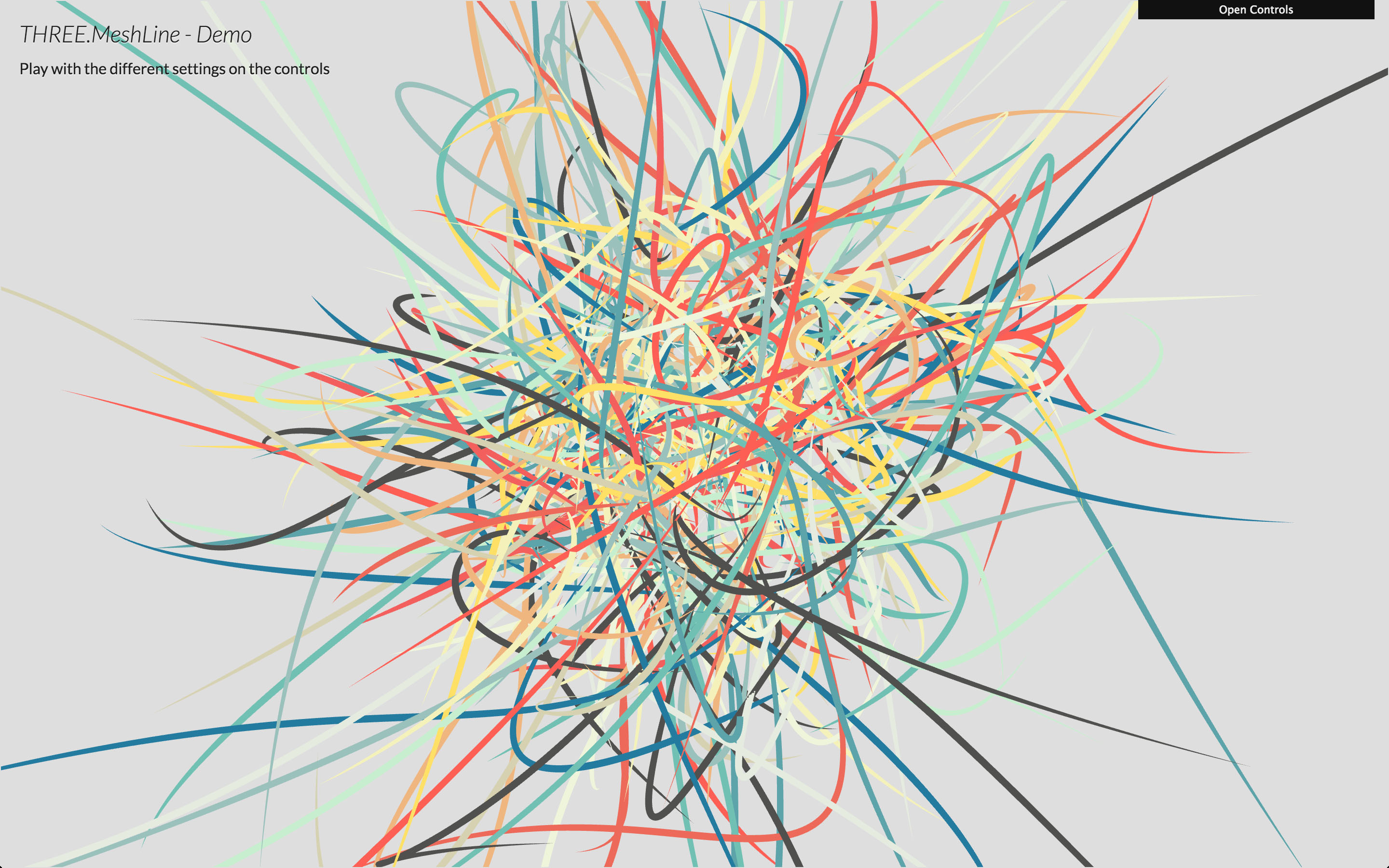
- Demo: play with the different settings of materials
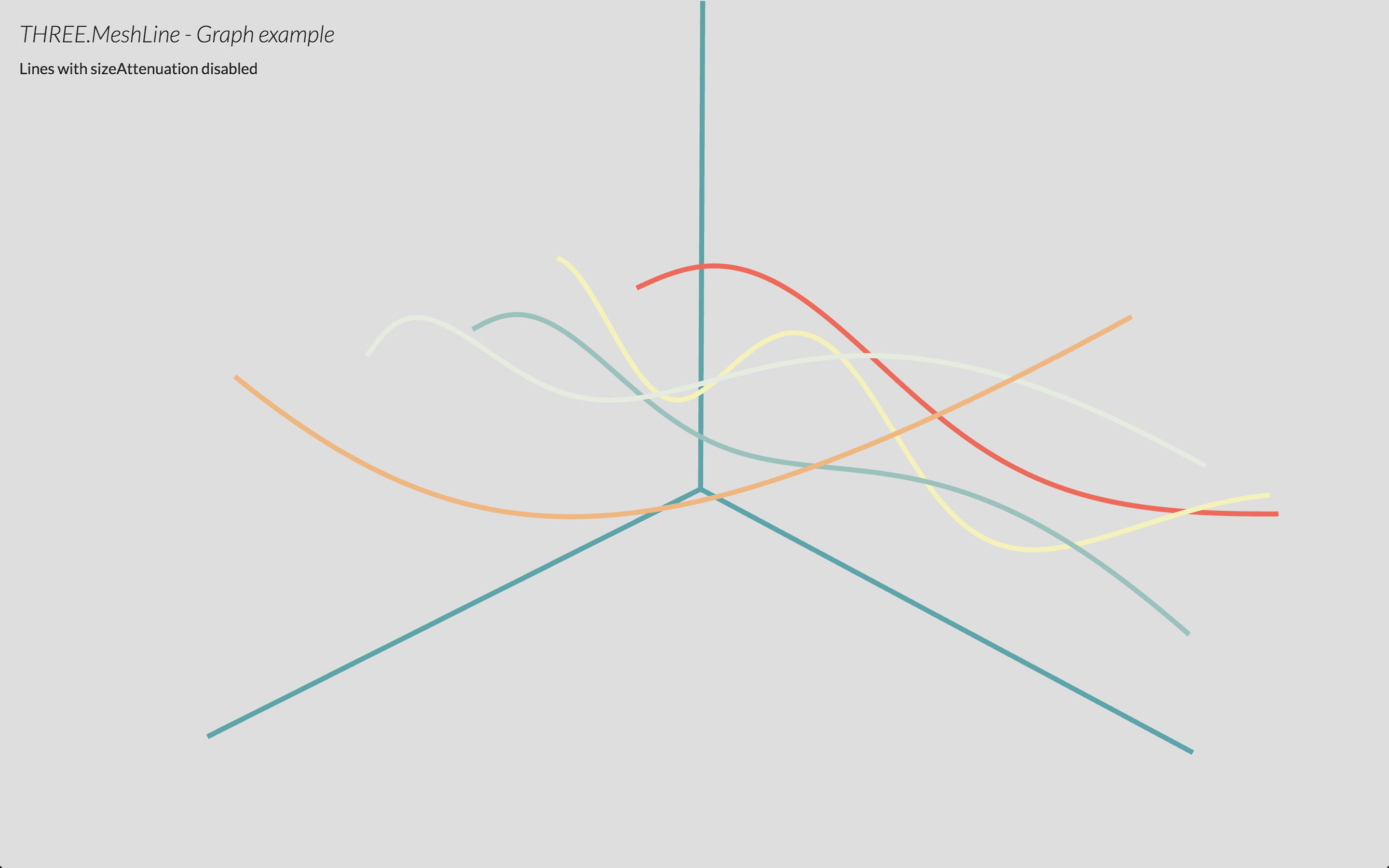
- Graph: example of using
MeshLineto plot graphs - Spinner: example of dynamic
MeshLinewith texture - SVG: example of
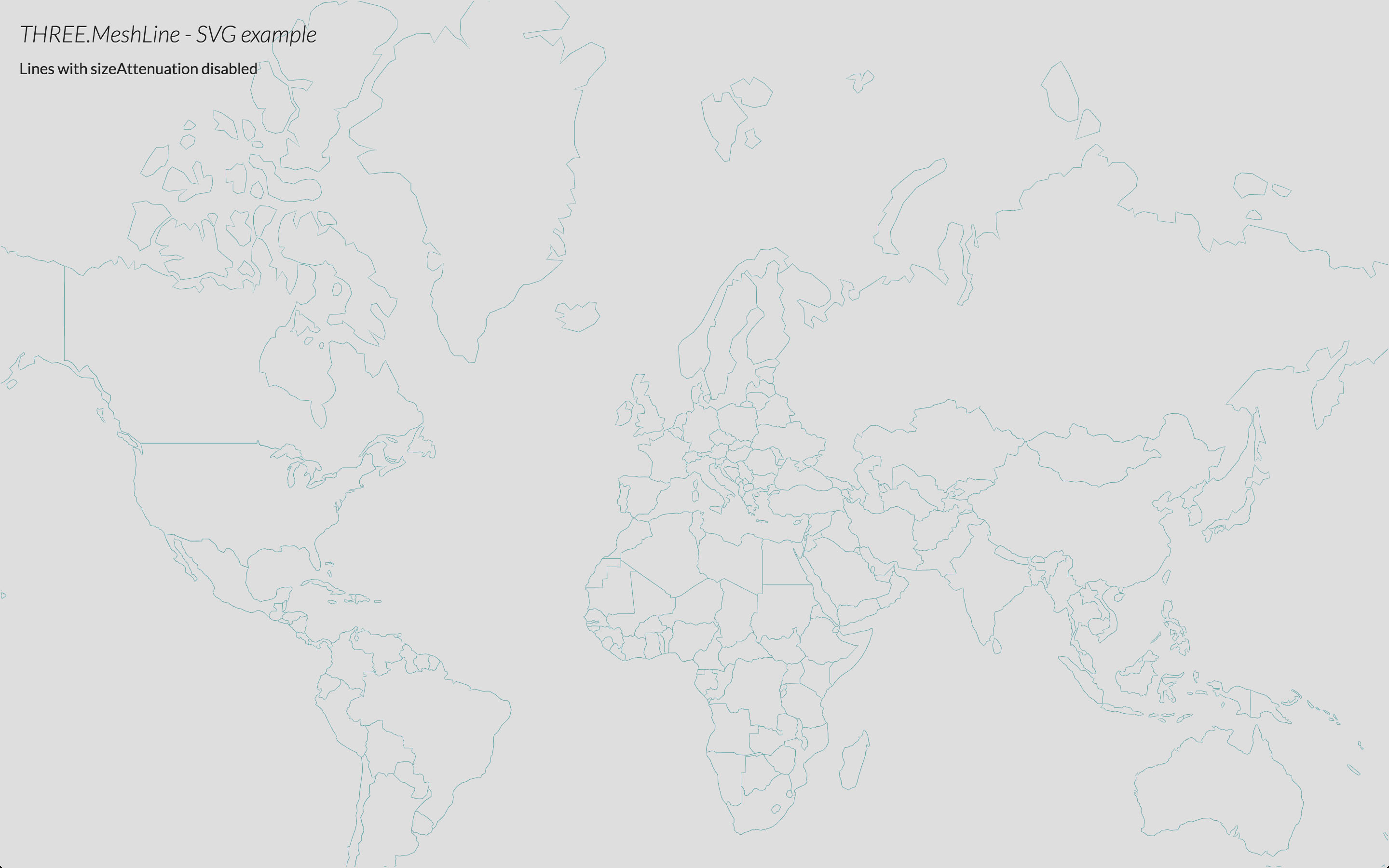
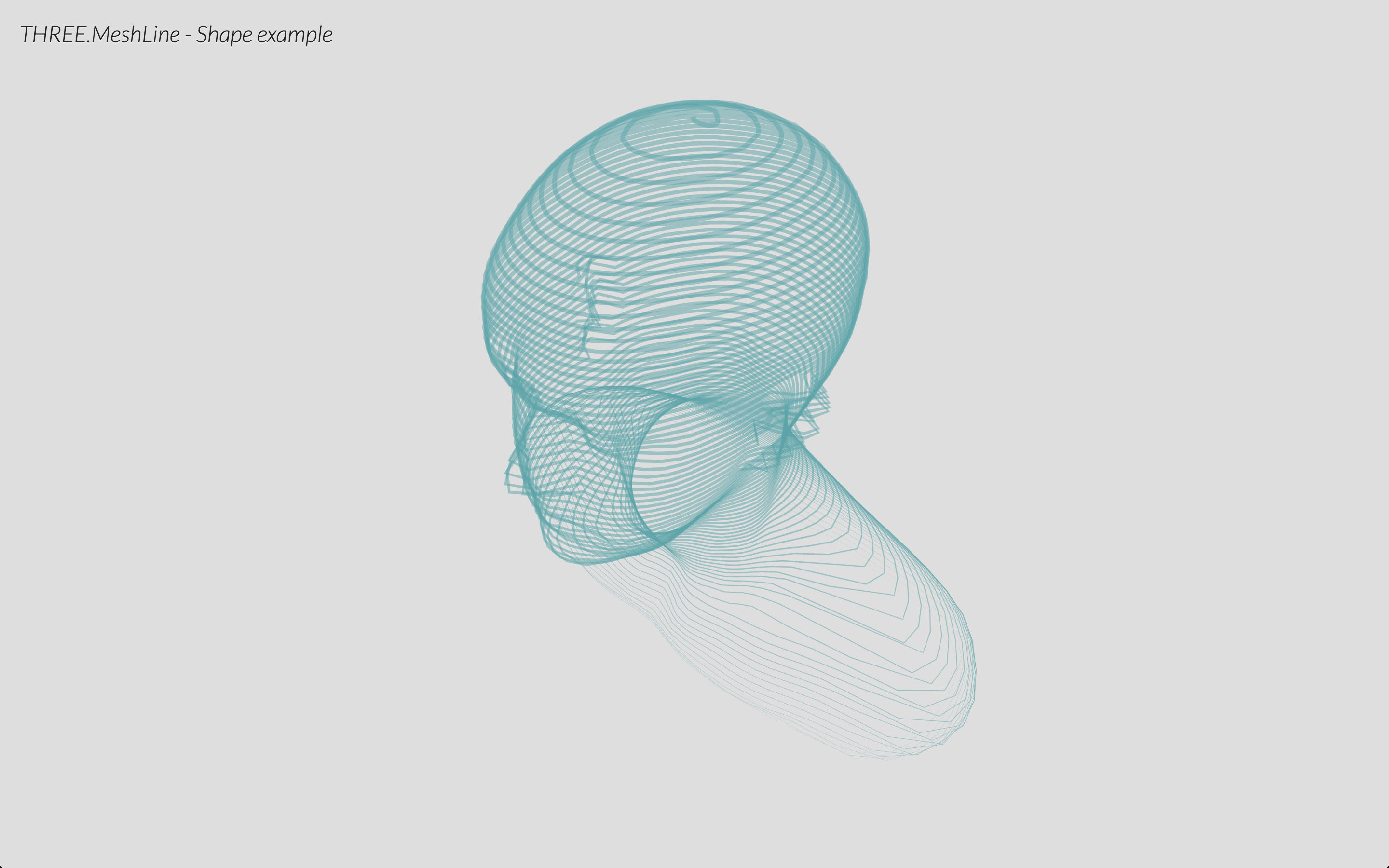
MeshLinerendering SVG Paths - Shape: example of
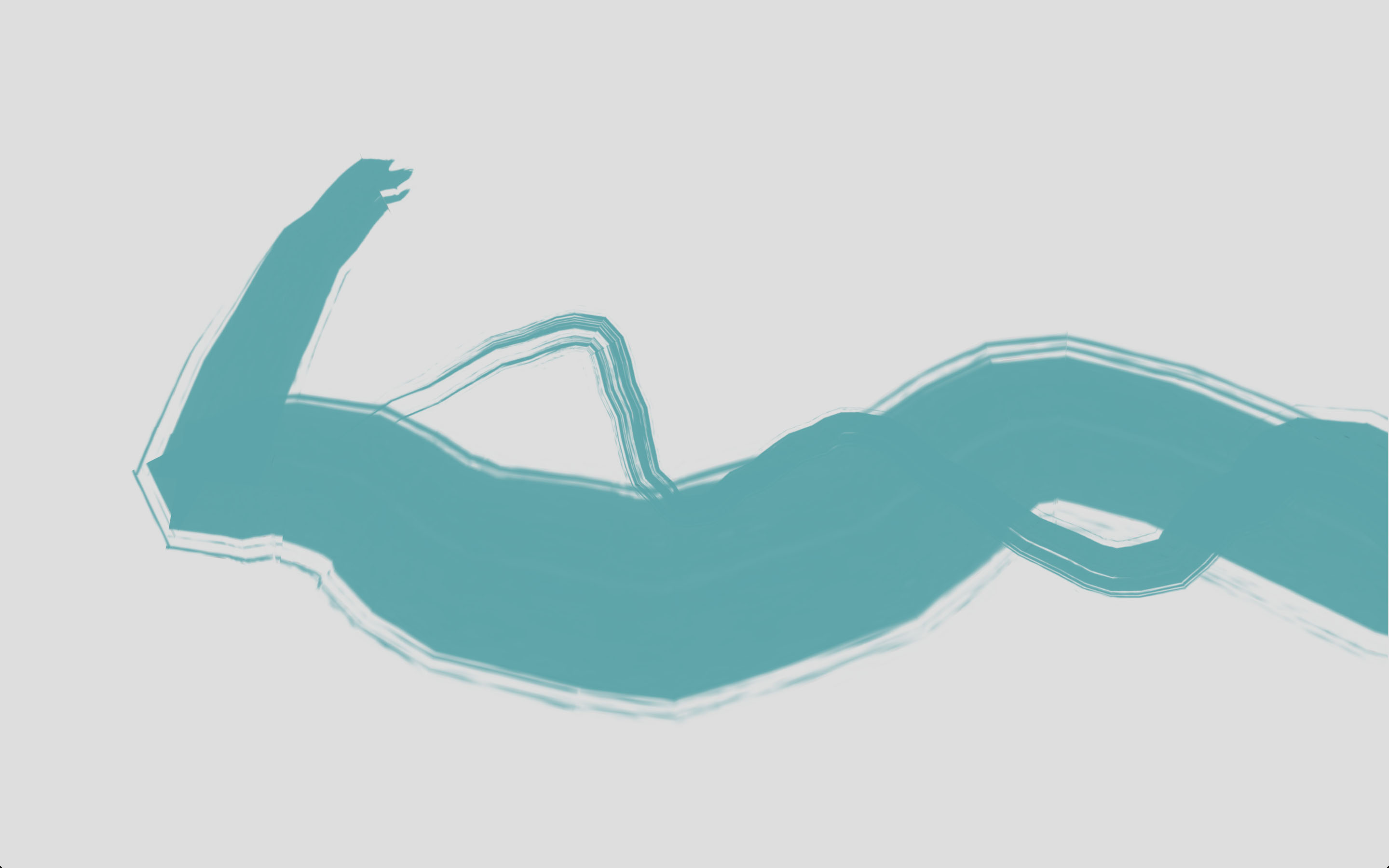
MeshLinecreated from a mesh - Birds: example of
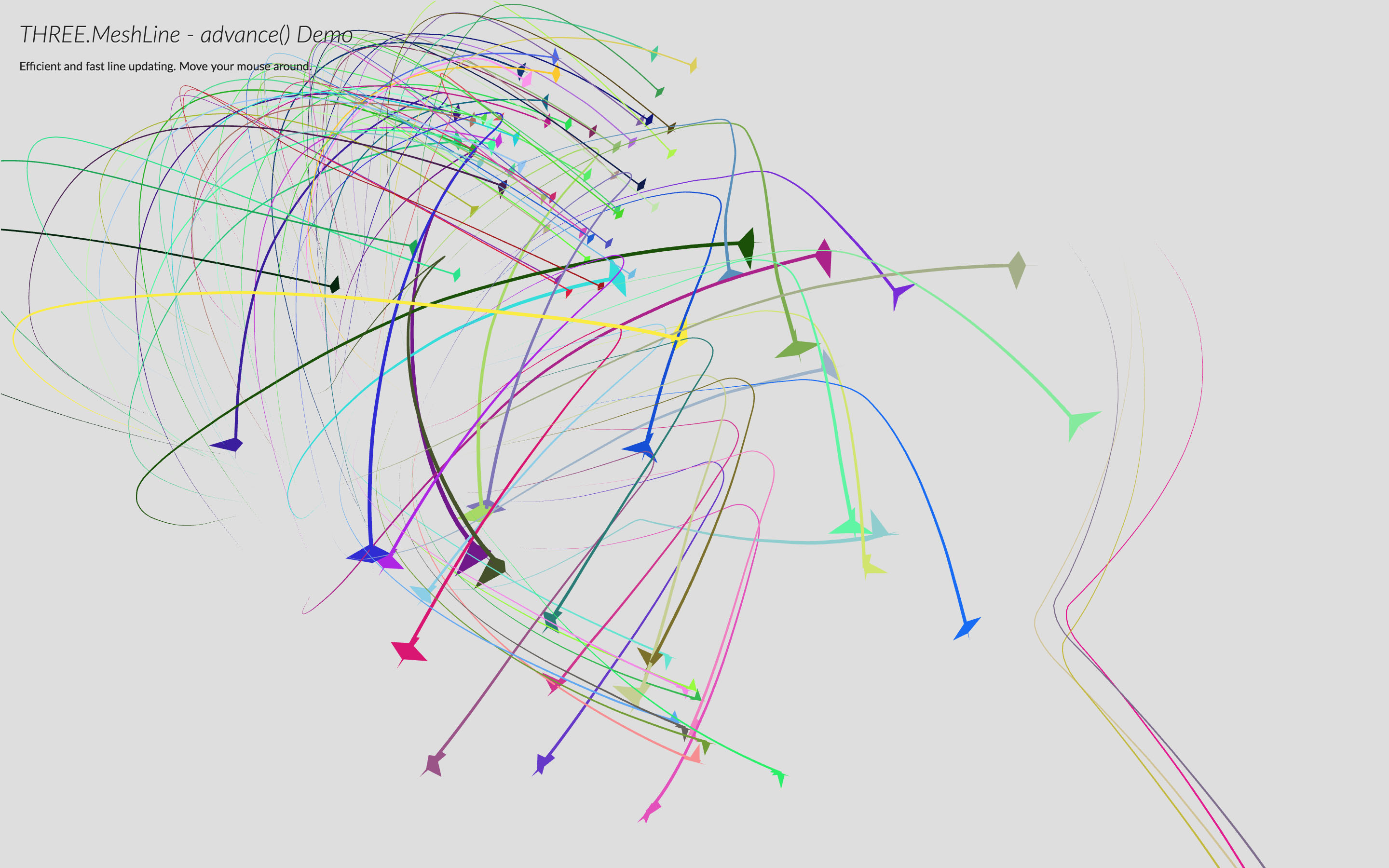
MeshLine.advance()by @caramelcode (Jared Sprague) and @mwcz (Michael Clayton)
2026 update
Disclaimer: this library is from 2015. three.js has had lines with width in its addons since r91 (2018): Line2, LineSegments2 and LineMaterial, with widths in pixels or in world units, dashes, and colors per vertex. If that’s all you need, use those. There’s also meshline, a fork of this library maintained by pmndrs
What this library has that the lines of three.js don’t: a width that changes along the line, a texture along the line, a visibility to draw only part of it, and advance() to move a trail cheaply.
The library has been updated for current three.js, so code written for version 1.x might need changes. What changed:
- it’s an ES module only, and it needs three.js r155 or later. The script tag and
requireare gone - with
sizeAttenuationoff,lineWidthis the width in pixels. It used to be half of that, so those lines are now twice as thick: halve the value to get the old look resolutionis not required anymore. The material takes the size of what it’s being rendered to, canvas or render target, and follows it when it changes- the colors match the rest of the scene: the line takes part in the color management and the tone mapping of three.js, it used to be darker from r152 on
- the gaps between dashes, and the part of the line past
visibility, are not drawn at all. They used to be drawn transparent, hiding what was behind them - lines follow the fog of the scene, like the materials of three.js. Set
material.fog = falseto leave them out - clipping planes and the logarithmic depth buffer work
- the width is right with orthographic cameras that are off centre
- lines of more than 32767 points work, they used to wrap around
setPoints()takes any typed array, an array of vectors or aBufferAttributetoo, and throws on anything else- setting the points again on a line of the same length reuses its buffers
material.clone()andmaterial.copy()work- raycasting takes the width of the line at each point, widths in pixels, dashes and
visibilityinto account, and returns the closest hit only
How to use
- Import the module
- Create an array of 3D coordinates
- Create a MeshLine and assign the points
- Create a MeshLineMaterial
- Use MeshLine and MeshLineMaterial to create a THREE.Mesh
Include the script
Use npm to install it, alongside three.js
npm i three three.meshline
and import it in your code
import * as THREE from 'three';
import { MeshLine, MeshLineMaterial, MeshLineRaycast } from 'three.meshline';
It’s a plain ES module, so it also works without a bundler as long as an import map resolves three (see demo/index.html).
Create an array of 3D coordinates
First, create the list of numbers that will define the 3D points for the line.
const points = [];
for (let j = 0; j < Math.PI; j += (2 * Math.PI) / 100) {
  points.push(Math.cos(j), Math.sin(j), 0);
}
An array of THREE.Vector3, any typed array and a BufferAttribute work as well. MeshLine also accepts a BufferGeometry looking up the vertices in it.
const points = [];
for (let j = 0; j < Math.PI; j += 2 * Math.PI / 100) {
  points.push(new THREE.Vector3(Math.cos(j), Math.sin(j), 0));
}
const geometry = new THREE.BufferGeometry().setFromPoints(points);
const line = new MeshLine();
line.setGeometry(geometry);
Create a MeshLine and assign the points
Once you have that, you can create a new MeshLine, and call .setPoints() passing the list of points.
const line = new MeshLine();
line.setPoints(points);
Note: .setPoints accepts a second parameter, which is a function to define the width in each point along the line. By default that value is 1, making the line width 1 * lineWidth in the material.
// p is a decimal percentage of the number of points
// ie. point 200 of 250 points, p = 0.8
line.setPoints(points, p => 2); // makes width 2 * lineWidth
line.setPoints(points, p => 1 - p); // makes width taper
line.setPoints(points, p => 2 + Math.sin(50 * p)); // makes width sinusoidal
To change a line, call .setPoints() again. If the number of points is the same, the buffers are reused. For a trail there’s .advance(), which drops the first point and adds a new one at the end:
line.advance(new THREE.Vector3(x, y, z));
Create a MeshLineMaterial
A MeshLine needs a MeshLineMaterial:
const material = new MeshLineMaterial(OPTIONS);
By default it’s a white material of width 1 unit.
MeshLineMaterial has several attributes to control the appereance of the MeshLine:
map- aTHREE.Textureto paint along the line (requiresuseMapset to true)useMap- tells the material to usemap(0 - solid color, 1 use texture)alphaMap- aTHREE.Textureto use as alpha along the line (requiresuseAlphaMapset to true)useAlphaMap- tells the material to usealphaMap(0 - no alpha, 1 modulate alpha)repeat- THREE.Vector2 to define the texture tiling (applies to map and alphaMap - MIGHT CHANGE IN THE FUTURE)color-THREE.Color, or anything it can be made from, to paint the line with, or tint the texture withopacity- alpha value from 0 to 1 (requirestransparentset totrue)alphaTest- cutoff value from 0 to 1dashArray- the length and space between dashes. (0 - no dash)dashOffset- defines the location where the dash will begin. Ideal to animate the line.dashRatio- defines the ratio between that is visible or not (0 - more visible, 1 - more invisible).visibility- how much of the line is drawn, from the start (0 - nothing, 1 - the whole line). Ideal to animate the line being drawn.sizeAttenuation- makes the line smaller with distance, like any other object (1 - attenuate, the default; 0 - don’t attenuate, the width is constant on screen)lineWidth- float defining width (ifsizeAttenuationis true, it’s world units; else is screen pixels)resolution-THREE.Vector2with the size that the pixels oflineWidthrefer to. Optional: by default it’s the size of the canvas, or of the render target
If you’re rendering transparent lines or using a texture with alpha map, you should set depthTest to false, transparent to true and blending to an appropriate blending mode, or use alphaTest.
Use MeshLine and MeshLineMaterial to create a THREE.Mesh
Finally, we create a mesh and add it to the scene:
const mesh = new THREE.Mesh(line, material);
scene.add(mesh);
You can optionally add raycast support with the following.
mesh.raycast = MeshLineRaycast;
The intersection has the point on the line, the distance, and the index of the segment that was hit. Lines with sizeAttenuation off need the camera, so use raycaster.setFromCamera() with them.
Declarative use
THREE.meshline can be used declaritively. This is how it would look like in react-three-fiber. The live examples below were made with version 1.x.


import { extend, Canvas } from '@react-three/fiber'
import { MeshLine, MeshLineMaterial, MeshLineRaycast } from 'three.meshline'

extend({ MeshLine, MeshLineMaterial })

function Line({ points, width, color }) {
  return (
    <Canvas>
      <mesh raycast={MeshLineRaycast}>
        <meshLine attach="geometry" points={points} />
        <meshLineMaterial
          attach="material"
          transparent
          depthTest={false}
          lineWidth={width}
          color={color}
          dashArray={0.05}
          dashRatio={0.95}
        />
      </mesh>
    </Canvas>
  )
}
Dynamic line widths can be set along each point using the widthCallback prop.
<meshLine attach='geometry' points={points} widthCallback={pointWidth => pointWidth * Math.random()} />
TODO
- Better miters
- Proper sizes
Support
three.js r155 or later, on any browser that runs it. Tested on r155, r163 and r186. For older versions of three.js use version 1.x of this library.
References
License
MIT licensed
Copyright (C) 2015-2016 Jaume Sanchez Elias, https://www.clicktorelease.com